Playback controls
Switch audio tracks and subtitles, adjust the aspect ratio, repeat videos, change playback speed and seek through your video.

Perfilm is a video player for iPhone and iPad, built on the long-standing VLC open-source project. It focuses on native iOS interactions and is optimized for iPhone Duo.

Coming soon on the App Store…
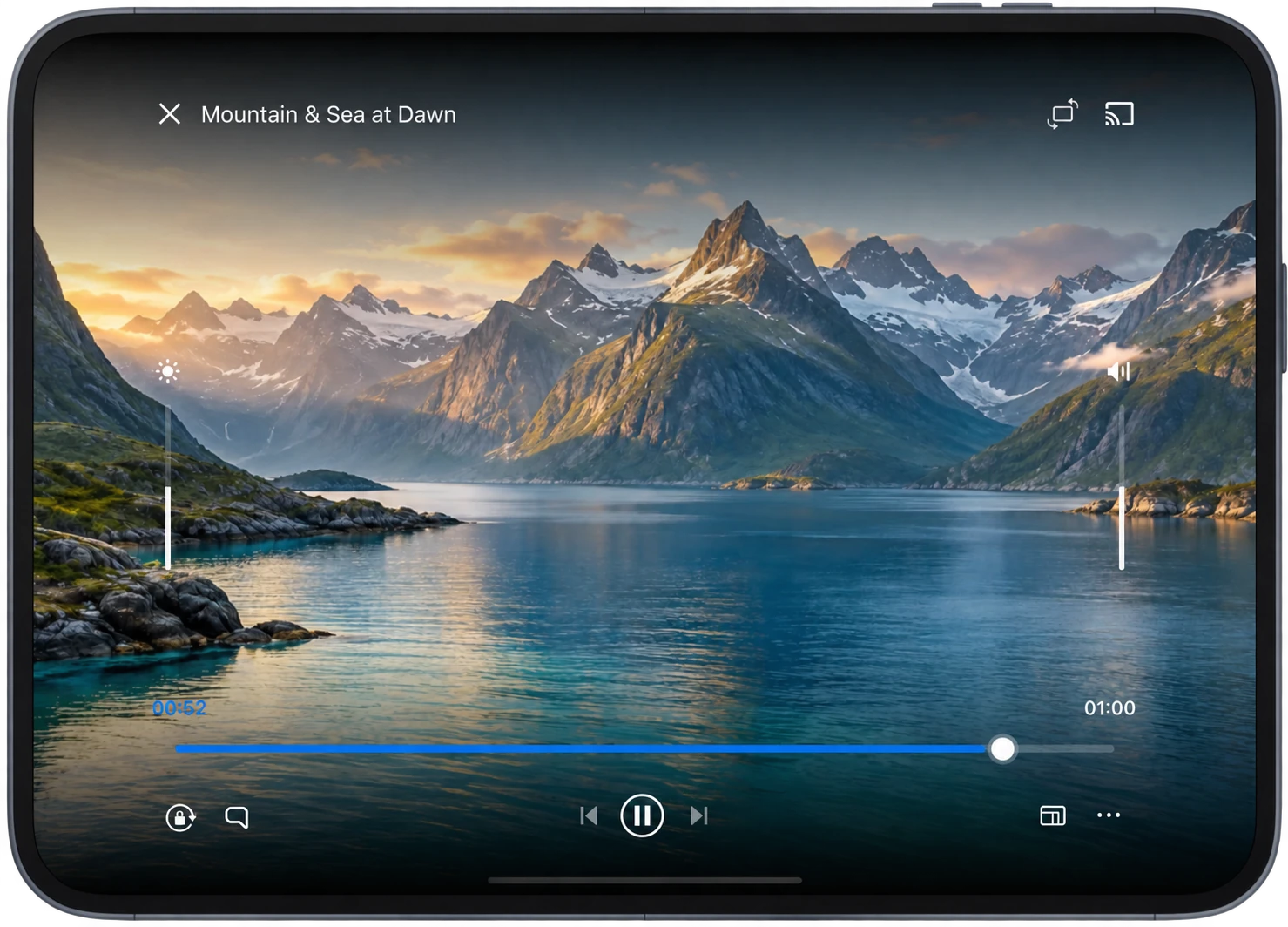
Switch audio tracks and subtitles, adjust the aspect ratio, repeat videos, change playback speed and seek through your video.
Open videos from local servers such as SMB, cloud storage or network links. Download videos to your device for offline playback.
Play MP4, MKV, MOV, AVI, WebM and more. See the FAQ for details.
Turn on file transfer manually, then use a browser on another device on the same local network to upload or download files in this device’s video folder.
File formats: MP4 / MP4V, MKV, MOV / QT, AVI / DivX, WebM, M4V, 3GP / 3G2 / 3GPP / 3GP2, MPEG / MPG / MPE / MPEG1 / MPEG2 / MPEG4 / MP2 / MP2V / MPV2, M1V / M2V, TS / TTS / M2T / M2TS / MTS, PS / VOB / VRO / EVO, FLV / F4V, ASF / WM / WMV, RM / RMVB, OGG / OGM / OGV / OGX, DV, MXF / GXF, DVR-MS / WTV, AMV, BIK, DAV, NSV, NUV
Video codecs: H.264 / AVC, H.265 / HEVC, AV1, VP8 / VP9, MPEG-1 / MPEG-2, MPEG-4 Part 2 (DivX / Xvid), H.261 / H.263, WMV / VC-1, Theora, MJPEG, ProRes, DV, RealVideo
Audio tracks: AAC, MP3 / MP2 / MP1, FLAC, ALAC, Opus, Vorbis, PCM / LPCM, ADPCM, DTS, WMA, AMR, Speex; Dolby Digital (AC-3) and Dolby Digital Plus (E-AC-3) use iOS system decoding.
Actual compatibility depends on the codecs, encoding profiles and device performance. The current version does not support TrueHD audio tracks.
Perfilm is derived from the VLC open-source project. Its media library, playback service and playback engine use VLC technology, while video browsing, navigation and some interactions are adapted to Perfilm. Original copyrights, open-source licenses and component acknowledgments are retained in the app.
Select a video in Files or another app and choose Perfilm in the share menu. You can also open the system file picker from “Browse → Local Files” in Perfilm.
Videos stored in Perfilm’s local folder appear on the Videos tab after the media library scans them.
Connect both devices to the same local network. Go to “Browse → Transfer” and turn on local network file transfer. Enter the address shown on the page in a browser on the other device to upload or download files in this device’s video folder.
Keep Perfilm in the foreground during transfers. The switch turns off after you quit the app; turn it on manually the next time you need it.
Open Browse and select a discovered device under Local Network. If your server is not listed, tap the dashed “Add Server” card at the end of the list and enter its address and any required login details.
Make sure the server is reachable from your device and your account has read access to the relevant folder.
During playback, tap the subtitle/audio track button in the controls to select an available track. External subtitles and synchronization adjustments are available in the related panels; options depend on the current video.
Use the feedback option in the app and describe the steps, device model, OS and app versions, video format and any error shown. You can hide server addresses, account names and other personal information in screenshots before sending them.